Configuration
Learn the SortLab dashboard, navigation, support surfaces, and plan limits before scaling sorting across your store.
The dashboard is the control room for setup progress, managed coverage, plan usage, and shortcuts into the main SortLab workflows.
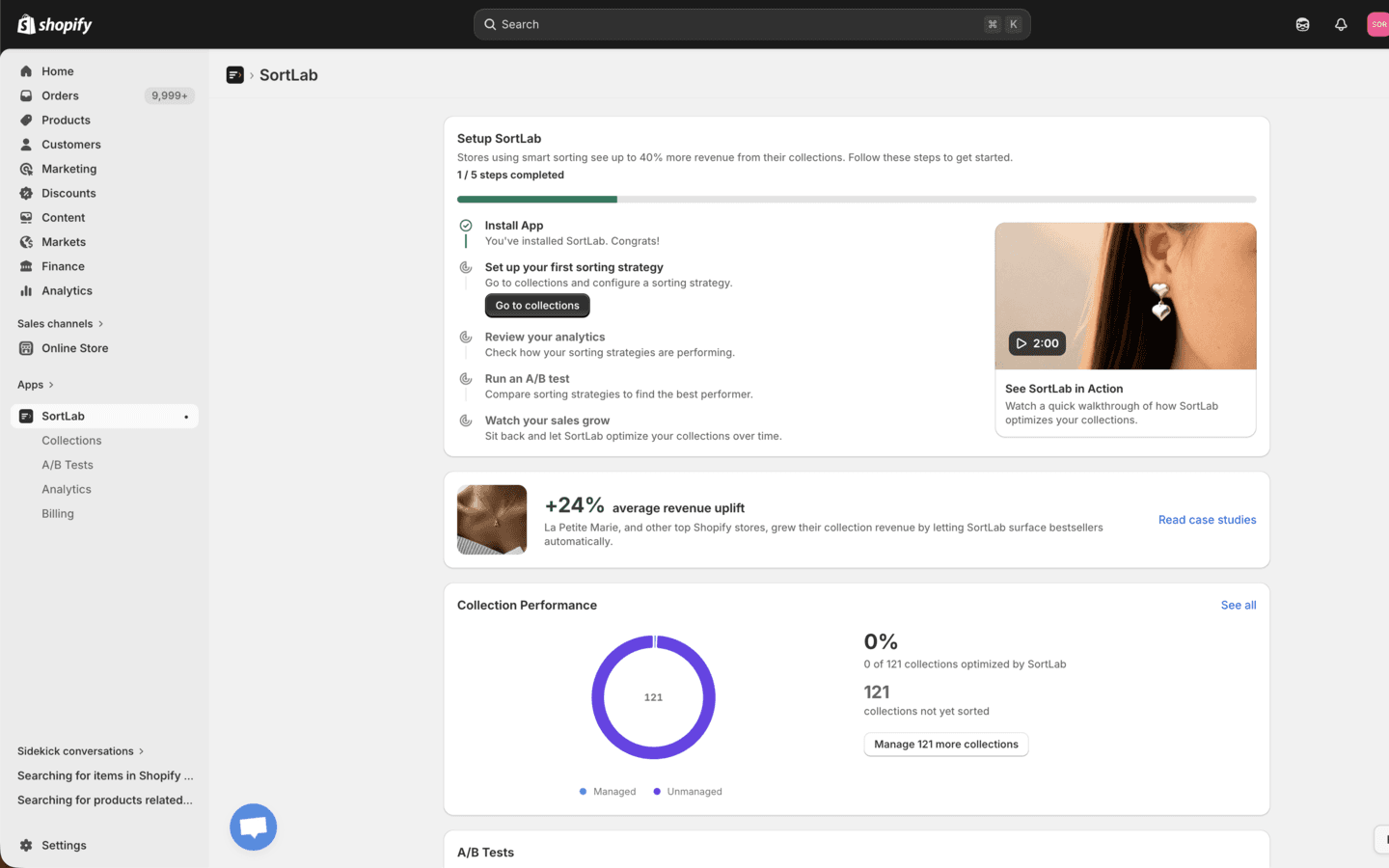
Dashboard Areas
Setup Guide
The setup guide tracks the path from install to optimization: install the app, apply a strategy, review analytics, run an A/B test when your plan supports it, and continue monitoring results.
Collection Performance
The collection performance card shows how many Shopify collections are synced, how many are managed by SortLab, and the percentage of your catalog currently under active sorting.
Use this to decide where to expand next. A store with 121 collections and 0 managed collections, for example, has no SortLab-controlled product order yet.
Plan and Usage
Billing and collection usage are shown in the app so you can see the current plan, active collection count, and whether an upgrade is needed before enabling more collections.
Help and Feedback
SortLab includes in-app support surfaces for chat, feature requests, success stories, and documentation. These are available from the dashboard and footer chat entry points.
Main Navigation
SortLab is organized around four primary app sections.
| Section | Use it for |
|---|---|
| Collections | Search collections, create app-managed collections, configure strategies, preview product order, sort now, pause, resume, and apply bulk actions. |
| A/B Tests | Compare a collection's current strategy against a challenger. Available on Advanced and Enterprise. |
| Analytics | Review revenue, orders, units sold, engagement, CTR, add-to-cart rate, sort runs, and collection lift. |
| Billing | Check your current plan, usage, limits, and change plans through Shopify Billing. |
Recommended Setup Order
- Start with a high-traffic collection. Revenue Maximizer or Balanced Smart Sort is usually the fastest baseline.
- Confirm the storefront order. Open the Shopify collection after SortLab finishes sorting.
- Enable scheduling. Daily is enough for most stores; use more frequent sorting only when your catalog or traffic changes quickly.
- Expand to more collections. Prioritize collections with traffic, revenue, seasonal relevance, or inventory pressure.
- Measure before tuning. Let analytics accumulate before changing strategies too often.
- A/B test important changes. Use Advanced or Enterprise to compare current and challenger strategies with balanced switchback testing.
Plan Limits
| Limit | Starter | Advanced | Enterprise |
|---|---|---|---|
| Active managed collections | 5 | 25 | 200 |
| Maximum automated frequency | Daily | 4x per day | Hourly |
| Analytics window | 30 days | 60 days | 90 days |
| Strategy lookback window | 30 days | 60 days | 90 days |
| A/B testing | No | Yes | Yes |
| Statistic filters | No | Yes | Yes |
| Review score signals | No | Yes | Yes |
| Tag rules | No | Yes | Yes |
If you downgrade, SortLab preserves strategies, history, and analytics. Features beyond the new plan can become unavailable and collections over the active limit may be paused.
Next Steps
- Sorting Strategies - Choose the right preset for each collection.
- Simple Mode - Configure a collection quickly.
- Advanced Mode - Build segmented and weighted strategies.
- Billing - Compare exact plan pricing and billing behavior.