Quick Start Guide
Sort your first Shopify collection with SortLab's goal presets, overrides, preview, and scheduling controls.
This guide gets your first managed collection live. Start with a high-traffic collection so the result is easy to inspect in your storefront and easy to measure later in Analytics.
Sort Your First Collection
Open Collections
Open SortLab from Shopify admin and click Collections. The table shows every synced collection, product count, current strategy, frequency, status, and last sorted time.
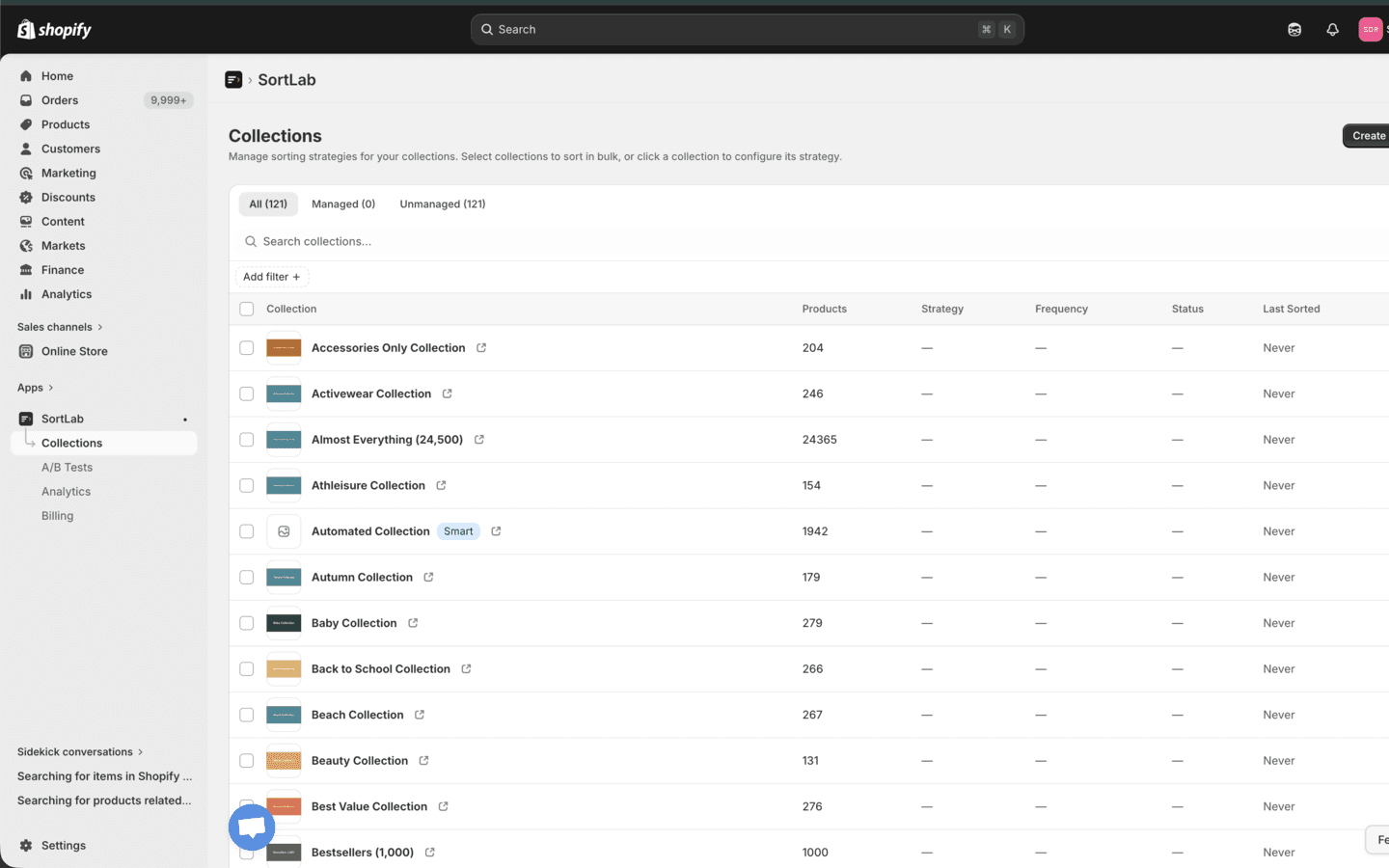
Use the tabs to focus the list:
- All - every synced collection.
- Managed - collections that already have an active SortLab strategy.
- Unmanaged - collections not yet controlled by SortLab.
Choose or create a collection
Click an existing collection to manage its product order. You can also click Create New Collection to build an app-managed Shopify collection from your product catalog and publish it with a SortLab strategy.
Pick a strategy
Simple Mode opens first. Choose one of the seven goal presets:
| Strategy | Best first use |
|---|---|
| Revenue Maximizer | Main catalog, shop-all, and high-traffic collections. |
| New Arrivals Boost | Collections with frequent product drops. |
| Inventory Clearance | Overstock, sale, or slow-moving inventory. |
| Balanced Smart Sort | General-purpose default when you want a stable blend. |
| Trending Now | Fast-moving categories where recent velocity matters. |
| Customer Favorites | Stores with meaningful review data. |
| Best Sellers | Collections where shoppers expect proven volume winners. |
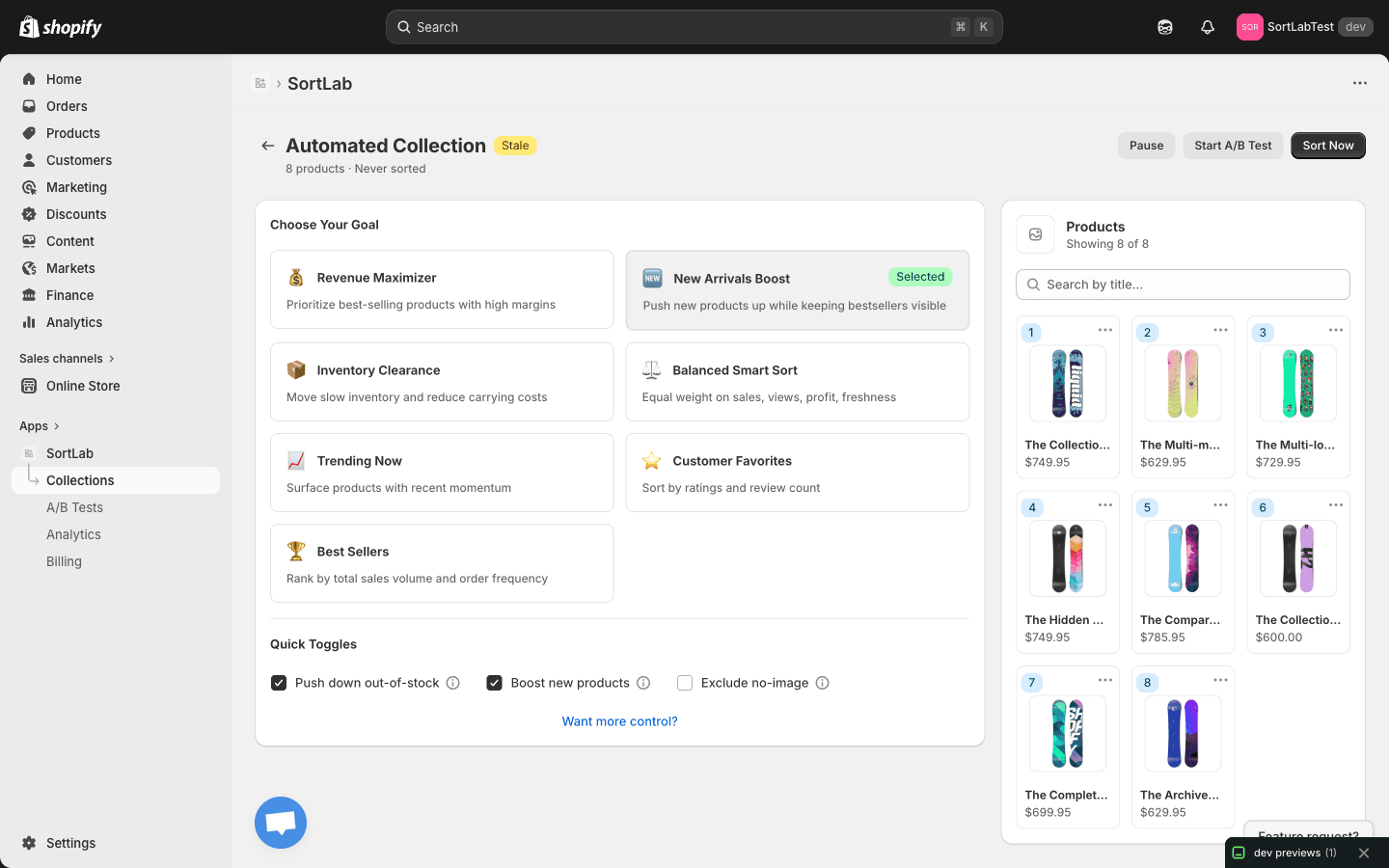
Set overrides and schedule
Review the controls under the strategy:
- Push down out-of-stock keeps unavailable items out of the top positions.
- Boost new products gives recent arrivals early visibility.
- Push down no-image keeps products without images away from premium positions.
- Max products optionally caps the number of products SortLab keeps in the collection.
- Sort Frequency, Schedule Hour, Lookback, and New product window control automated sorting behavior.
The options you can save depend on your plan. Starter supports daily automated sorting and a 30-day lookback; Advanced supports up to 4 sorts per day and a 60-day lookback; Enterprise supports hourly sorting and a 90-day lookback.
Save and sort
Click Save & Sort or Sort Now to apply the product order. SortLab calculates scores, writes the order back to Shopify, and updates the product preview and last sorted timestamp.
After sorting finishes, open the collection on your live storefront to verify the order customers now see.
Set Up More Collections
From the Collections table you can search, filter by status, select multiple rows, and use bulk actions. Use bulk setup for broad rollout, then tune important collections one by one.
Bulk changes should be used deliberately. They can apply the same strategy to many collections, but plan limits still control how many collections can stay active.
What To Check Afterward
- The collection status is Active.
- The Last Sorted timestamp updated.
- The storefront product order matches the preview.
- The collection appears in Analytics after sorting and order data begin flowing.
- If you are on Advanced or Enterprise, the collection becomes eligible for A/B testing.