Simple Mode
Use Simple Mode to apply goal presets, common overrides, product caps, schedules, and previews without building custom segments.
Simple Mode is the fastest path to a managed collection. Pick a goal preset, set the common overrides, preview the order, and sort.
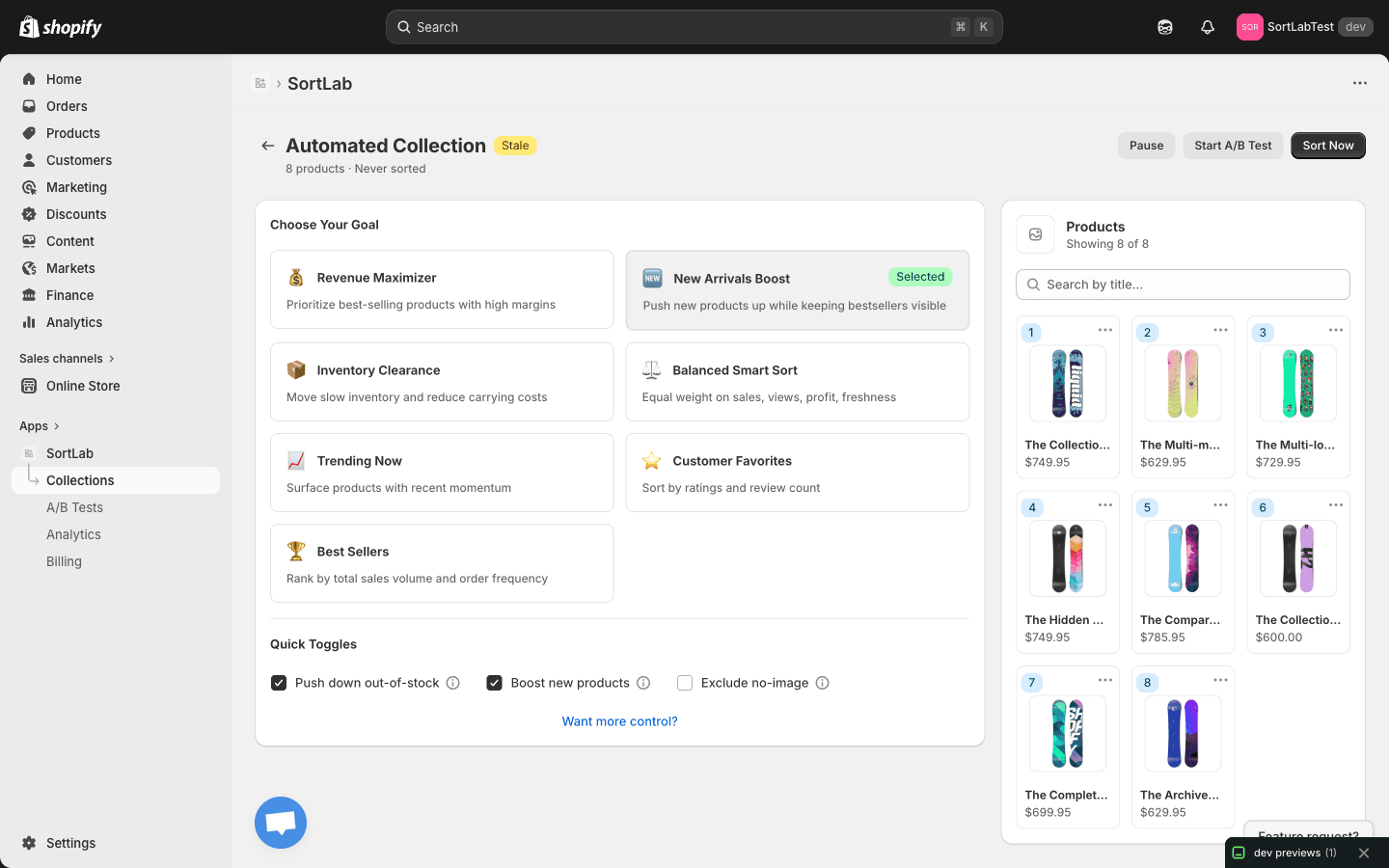
What Simple Mode Controls
| Control | What it does |
|---|---|
| Goal preset | Selects one of the seven built-in SortLab strategies. |
| Push down out-of-stock | Moves sold-out products away from the top positions. |
| Boost new products | Gives products inside the new product window a temporary lift. |
| Push down no-image | Moves products without images away from premium positions. |
| Max products | Optionally keeps only the top-ranked products up to the cap. Leave blank for no cap. |
| Sort Frequency | Sets how often SortLab automatically re-sorts the collection. |
| Schedule Hour | Sets the UTC hour used as the schedule anchor. |
| Lookback | Controls how many days of performance data are used for scoring. |
| New product window | Controls how long a product counts as new for the boost toggle. |
Basic Workflow
Open a collection
Go to Collections and click the collection you want to manage. Collections with no active strategy open ready for setup.
Choose your goal
Select a strategy card. Use Revenue Maximizer for a strong default, Balanced Smart Sort for a stable blend, or choose a goal that matches the collection's job.
Set overrides
Keep Push down out-of-stock enabled for most stores. Turn on Boost new products when recent arrivals need visibility, and use Push down no-image when products can be missing customer-facing images.
Confirm schedule and windows
Choose the sort frequency, UTC schedule hour, lookback window, and new product window that match your plan and merchandising cadence.
Sort now
Click Save & Sort or Sort Now. SortLab applies the strategy, updates the preview, and writes the order back to Shopify.
Product Preview
The preview panel shows the ranked product order SortLab will apply. Each product row includes its position, image, title, and price so you can sanity-check the top products before or after sorting.
Preview is intended for operational confidence, not a substitute for analytics. Use it to catch obvious merchandising issues, then use Analytics and A/B testing to measure performance.
When Simple Mode Is Enough
Use Simple Mode when:
- The collection has one clear goal.
- You do not need different rules for different product groups.
- A preset strategy plus overrides explains your merchandising intent.
- You want fast setup across many collections.
When To Switch To Advanced Mode
Switch to Advanced Mode when you need:
- Multiple segments with different filters and sorters.
- Tag, vendor, product type, price, margin, inventory, or statistic filters.
- Weighted combinations of sales, inventory, pricing, behavioral, review, and metadata signals.
- Reusable strategy templates.
- More explicit merchandising control than a single preset provides.
Plan limits still apply in both modes. Advanced and Enterprise unlock A/B testing, tag rules, statistic filters, review signals, and broader analytics/lookback windows.
Next Steps
- Sorting Strategies - Choose the right preset.
- Advanced Mode - Build custom rules.
- Scheduling - Tune automation by plan.