Advanced Mode
Build segmented and weighted collection strategies with filters, sorters, tag rules, scheduling, and templates.
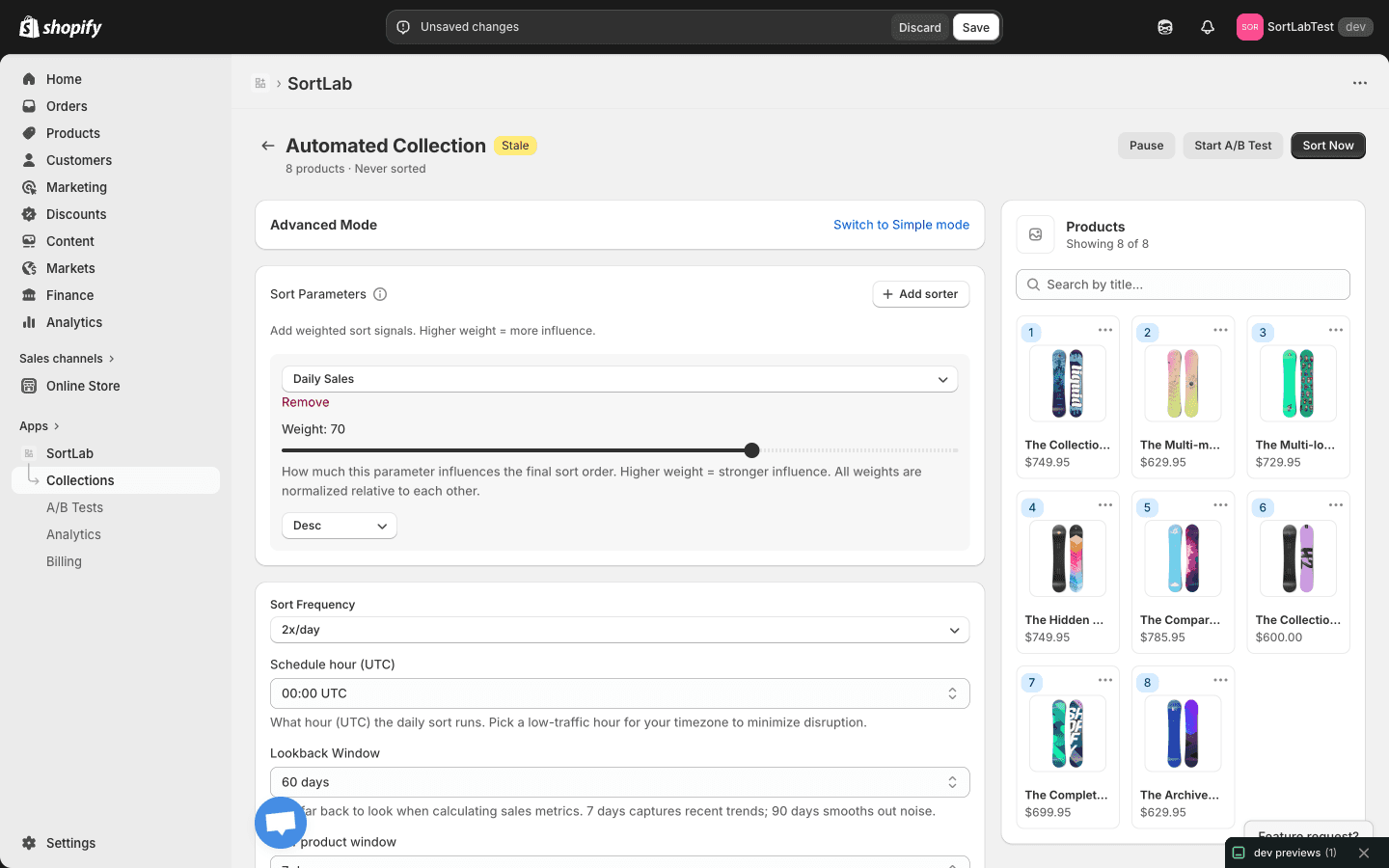
Advanced Mode is the strategy builder for merchants who need more control than a single preset. It lets you group products, apply filters, choose weighted sorters, cap segments, save templates, and schedule automation.
What Advanced Mode Adds
Advanced Mode can include:
- Segments that reserve sections of the collection for matching products.
- Filters by tag, vendor, product type, title, price, discount, margin, inventory, sales, and product dates.
- Sorters with weights and ascending or descending direction.
- Behavioral signals such as impressions, CTR, add-to-cart rate, page views, conversion rate, net sales per list view, and profit per list view.
- Review signals on Advanced and Enterprise.
- Tag rules on Advanced and Enterprise.
- Pinned products for fixed hero positions.
- Schedule settings for frequency, UTC hour, lookback, and new product window.
- Strategy templates for reusing a configuration across collections.
Segments
Segments let you define product groups and control how each group is sorted. For example:
| Segment | Filter | Sorter |
|---|---|---|
| New arrivals | Days since published is less than 30 | Revenue desc, then page views desc |
| Clearance | Tag is clearance or discount percent is greater than 20 | Inventory desc |
| Core products | No filter, catches remaining products | Revenue desc and margin desc |
The order of segments matters. Products claimed by an earlier segment are placed before products that fall through to later segments.
Filters
Filters decide which products a segment can claim. Common filter families include:
- Catalog metadata - tag, vendor, product type, title.
- Pricing - price, compare-at price, discount percent, cost, margin.
- Inventory - inventory, variant count, variants with stock, in-stock ratio.
- Sales - units sold and revenue.
- Dates - days since created, published, or updated.
Statistic filters require Advanced or Enterprise.
Sorters and Weights
Sorters rank products inside a segment. Each sorter has:
- A signal, such as Revenue, Daily Sales, Inventory, Margin %, CTR, Review Rating, or Days Since Published.
- A weight, which controls how much that signal contributes relative to other sorters.
- A direction, where descending puts larger values first and ascending puts smaller values first.
Example weighted strategy:
| Sorter | Weight | Direction |
|---|---|---|
| Revenue | 50 | Desc |
| Margin % | 25 | Desc |
| Page Views | 15 | Desc |
| Days Since Published | 10 | Asc |
Start with two or three signals. Too many similar weights can make the ranking hard to reason about.
Tag Rules
Tag rules layer simple merchandising instructions over the strategy:
- Push up tags move matching products higher.
- Push down tags deprioritize matching products.
- Exclude tags move matching products out of the sorted top group.
Tag rules require Advanced or Enterprise.
Pinned Products
Pinned products stay in fixed positions. Use this for hero products, campaign products, or products that must remain visible even when performance signals change.
Pinned positions should be used sparingly. Too many pins reduce the strategy's ability to react to real performance.
Scheduling Controls
Advanced Mode uses the same schedule controls as Simple Mode:
| Setting | Purpose |
|---|---|
| Sort Frequency | 1x/day, 2x/day, 4x/day, or hourly depending on plan. |
| Schedule Hour | UTC hour used as the anchor for scheduled sorts. |
| Lookback | 7, 30, 60, or 90 days depending on plan. |
| New product window | 7, 14, 30, or 60 days for the Boost New Products override. |
Starter can save daily automation and up to a 30-day lookback. Advanced unlocks higher frequency up to 4x/day and 60-day lookback. Enterprise unlocks hourly sorting and 90-day lookback.
Build a Strategy
Switch to Advanced Mode
Open the collection and choose the advanced/custom strategy builder from the collection detail page.
Add filters or segments
Create segments only when the product groups truly need different treatment. Keep a catch-all segment or default sorter for products that do not match earlier filters.
Add sorters
Choose the signals that match the collection's goal. Set weights and direction so the logic can be explained clearly.
Set caps, pins, and tag rules
Use max products to limit how many items a segment can claim. Add pinned products and tag rules only where a merchandising rule must override performance ranking.
Preview, save, and sort
Review the product preview, then save and run the sort. Check the live Shopify collection after SortLab finishes.
Next Steps
- Scheduling - Understand frequency and lookback choices.
- A/B Testing - Compare custom logic against a preset.
- Analytics - Monitor the impact after sorting begins.