Configuration
Explore the SortLab dashboard, understand your metrics, configure collections, and learn how to get the most out of every feature.
Configuration
Now that SortLab is installed and you've sorted your first collection, it's time to get familiar with the full app. This guide walks you through the dashboard, shows you how to navigate each section, and helps you configure SortLab for your store's specific needs.
Understanding the dashboard
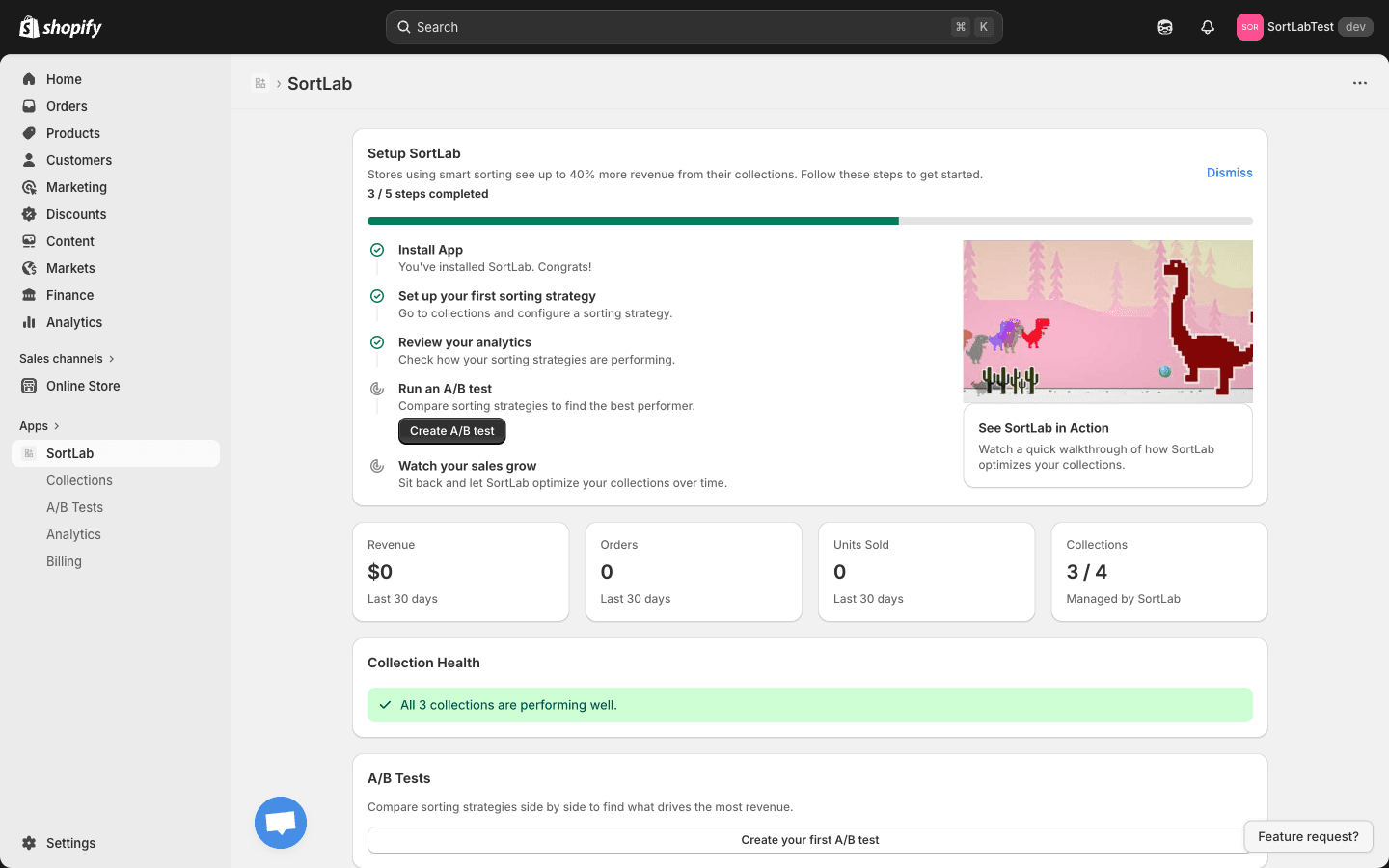
The dashboard is your home base in SortLab. It gives you a real-time overview of how sorting is impacting your store.
Metrics cards
At the top of the dashboard, you'll see four key metrics:
- Revenue — Total revenue generated from collections managed by SortLab
- Orders — Number of orders containing products from managed collections
- Units Sold — Total units sold across managed collections
- Collections Managed — How many of your collections have an active sorting strategy
These metrics update as new order data comes in, so you can track the impact of your sorting strategies over time.
Collection Health
The Collection Health section gives you a quick status check across all your collections. It highlights collections that:
- Are actively sorted and performing well
- Haven't been sorted recently and may need attention
- Have issues that need resolving (for example, a collection with no products)
This is the fastest way to spot collections that might benefit from a strategy change.
A/B Tests
If you have any active experiments, they appear here with their current status. You can click through to see detailed results or create a new test.
Collections Coverage
The pie chart shows what percentage of your collections are managed (have a sorting strategy) vs. unmanaged (no strategy applied). Your goal should be to get as close to 100% coverage as possible — every unsorted collection is a missed opportunity to optimize product placement.
Plan & Limits
A quick reference showing your current plan and how much of your allocation you're using. This is especially useful on the Free plan, where you're limited to 3 collections.
Navigating SortLab
SortLab is organized into four main sections, accessible from the navigation sidebar:
Collections
The Collections section is where you spend most of your time. Here you can:
- View all your Shopify collections in a sortable, filterable table
- See which collections are managed vs. unmanaged
- Click into any collection to configure its sorting strategy
- Apply a strategy across multiple collections at once
- Monitor revenue trends and last-sorted timestamps
A/B Tests
The A/B Tests section lets you run experiments to compare different sorting strategies head-to-head. This is one of the most powerful features in SortLab — instead of guessing which strategy works best, you can measure it with real data.
Analytics
The Analytics section provides deeper reporting on your sorting performance. Dive into revenue breakdowns, product-level performance, and trend data to understand exactly how sorting changes affect your bottom line.
Billing
The Billing section lets you manage your subscription, upgrade or downgrade your plan, and review your invoice history.
Setting up collections
Once you're familiar with the dashboard, the next step is to set up sorting strategies across your collections. Here's a practical approach:
-
Start with your highest-traffic collection. Apply the Revenue Maximizer strategy and let it run for a few days. This gives you a baseline to compare against.
-
Expand to 2-3 more collections. Try different strategies on different collections to see what works. For example, use New Arrivals Boost on a seasonal collection and Best Sellers on an evergreen collection.
-
Review your analytics after a week. Check the dashboard to see which strategies are driving the most improvement.
-
Run an A/B test. Once you have a feel for the strategies, set up an A/B test on your most important collection to find the optimal approach.
On the Free plan, you can manage up to 3 collections — enough to test strategies on your most important collections before deciding to upgrade.
Simple Mode vs. Advanced Mode
SortLab offers two ways to configure sorting for each collection:
Simple Mode
Simple Mode is designed for speed and simplicity. You pick one of seven goal-based presets, toggle a few options, and you're done. It's the right choice when you want proven strategies without manual tuning.
Available on all plans (Free, Pro, and Plus).
Learn more in the Simple Mode guide.
Advanced Mode
Advanced Mode gives you full control over your sorting logic. You can:
- Create custom sorters — Define your own weighted combination of metrics (revenue, views, conversion rate, inventory age, and more)
- Build segments — Group products by tag, vendor, type, or other attributes and apply different sorting rules to each segment
- Pin products — Lock specific products to specific positions in the collection (for example, always keep a hero product in position 1)
- Copy strategies — Duplicate a strategy from one collection to another to save time
Available on the Plus plan ($49.99/mo).
If you're just getting started, we recommend using Simple Mode first. Once you've seen results and want finer control, upgrade to Plus and explore Advanced Mode.
Learn more in the Advanced Mode guide.
Understanding plan limits
Each plan is designed for different stages of growth:
| Feature | Free | Pro ($14.99/mo) | Plus ($49.99/mo) |
|---|---|---|---|
| Collections | Up to 3 | Unlimited | Unlimited |
| Sorting frequency | Manual only | Up to 2x/day | Hourly |
| Goal presets (Simple Mode) | All 7 | All 7 | All 7 |
| Quick toggles | Basic | All + tag rules | All + tag rules |
| Advanced Mode | — | — | Full access |
| Pinned products | — | — | Yes |
| Copy strategy across collections | — | — | Yes |
| Sort history | — | Yes | Yes |
| Priority support | — | — | Yes |
Not sure which plan is right for you? Start on the Free plan. If you find yourself wanting scheduled sorting or need more than 3 collections, the Pro plan is the natural next step. If you need custom sorting logic or manage a large catalog, Plus gives you everything.
For full plan details, see the Plans & Pricing page.
Getting help
SortLab offers several ways to get support, all accessible from the Help section on your dashboard:
- Chat Support — Message our team directly from within the app. Available on all plans.
- Video Consultation — Book a one-on-one screen-sharing session with a SortLab sorting specialist who can help you optimize your strategy. Available on Pro and Plus plans.
- Success Stories — Read case studies from other merchants to get inspiration for your own sorting approach.
- Help Documentation — You're reading it right now. Browse guides for every feature in the app.
Plus plan merchants get Priority support, which means faster response times and dedicated attention from our team.
Next steps
Now that you're set up and know your way around, it's time to dive deeper:
- Sorting Strategies — Understand the data behind each strategy
- Scheduling — Automate your sorts so they run on their own
- A/B Testing — Run experiments to optimize your approach
- Analytics — Track revenue impact and collection performance