Simple Mode
Use Simple Mode to sort your collections with one-click goal presets and quick toggles.
Simple Mode
Simple Mode is the fastest way to sort a collection in SortLab. Pick a goal, flip a few toggles, and hit sort. No weights to configure, no parameters to tune. It is designed for merchants who want results without complexity.
Who Is Simple Mode For?
Simple Mode is ideal for:
- Merchants new to product sorting who want to see results quickly
- Stores on the Free plan that want to use goal-based presets
- Anyone who prefers simplicity and wants SortLab to handle the details
Simple Mode is available on all plans, including Free.
The Collection Detail Screen
When you open a collection in SortLab, you land on the collection detail screen in Simple Mode by default.
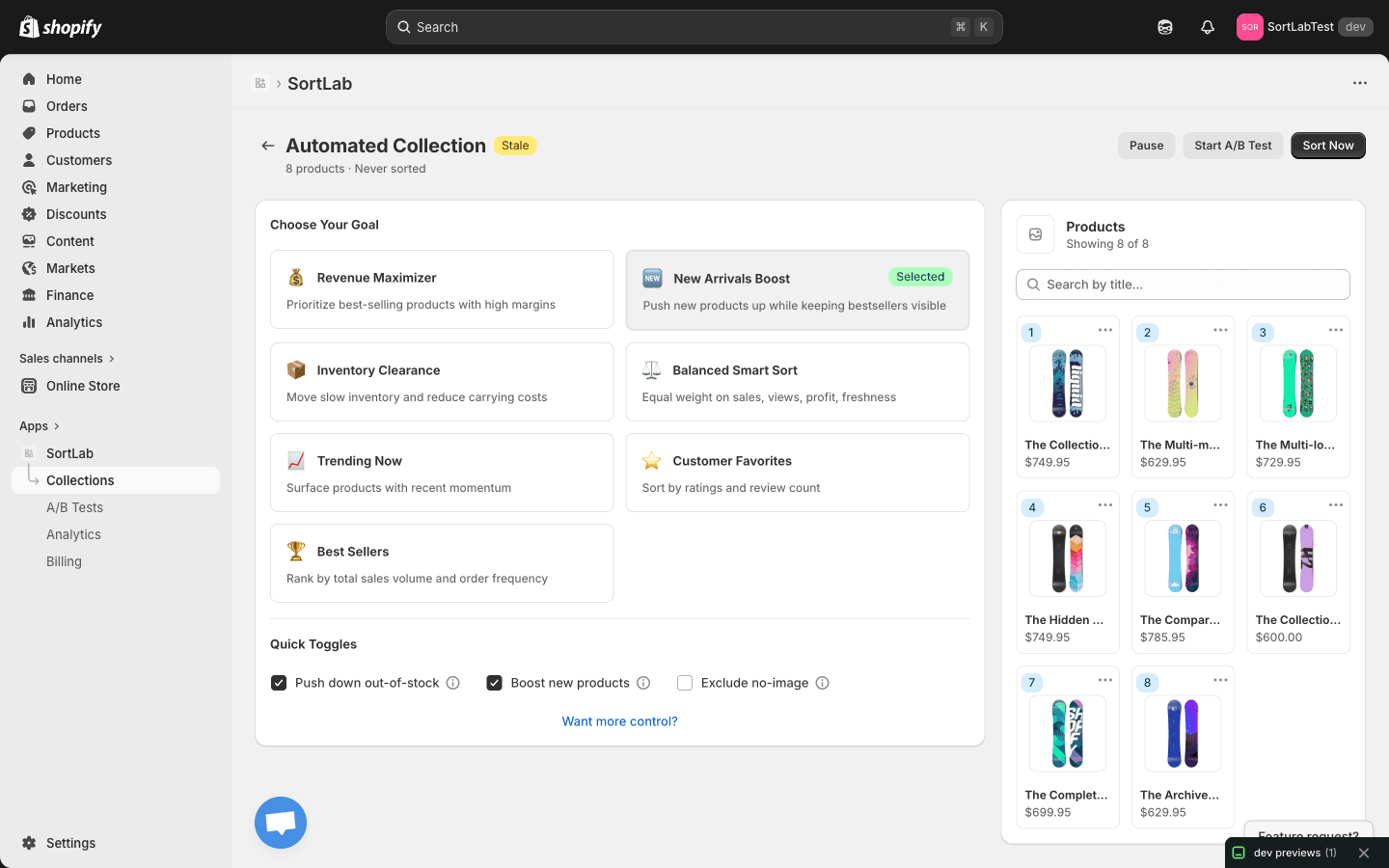
At the top you will see:
- Collection name and product count
- Status badge — "Active" means sorting is running on schedule; "Stale" means the collection has not been sorted recently
- Last sorted — when the collection was last sorted
- Action buttons — Pause, Start A/B Test, and Sort Now
The main area is split into two parts: the strategy and toggles configuration on the left, and a live product preview panel on the right.
Selecting a Strategy
Under the Choose Your Goal section, you will find seven sorting strategies. Each one is a preset that tells SortLab what to optimize for.
Open a collection
From the Collections page, click on the collection you want to sort.
Choose your goal
Click on one of the seven strategy cards:
- Revenue Maximizer — Prioritize best-selling products with high margins
- New Arrivals Boost — Push new products up while keeping bestsellers visible
- Inventory Clearance — Move slow inventory and reduce carrying costs
- Balanced Smart Sort — Equal weight on sales, views, profit, and freshness
- Trending Now — Surface products with recent momentum
- Customer Favorites — Sort by ratings and review count
- Best Sellers — Rank by total sales volume and order frequency
The selected strategy card will highlight to show it is active.
Configure quick toggles (optional)
Adjust the quick toggles to fine-tune the behavior. See the section below for details on each toggle.
Click Sort Now
Hit the Sort Now button in the top right to immediately reorder the collection's products based on your selected goal and toggles.
For a detailed breakdown of what each strategy does and when to use it, see Sorting Strategies.
Quick Toggles
Quick toggles let you apply common sorting rules on top of your chosen strategy. They act as modifiers that adjust the final product order without changing the core strategy.
Push Down Out-of-Stock
When enabled, products that are currently out of stock are pushed to the bottom of the collection. This prevents customers from seeing unavailable items in prominent positions.
When to use it: Almost always. Most stores benefit from pushing sold-out products down so customers see items they can actually buy. The only exception might be if you use out-of-stock products to drive "notify me" sign-ups and want them visible.
Boost New Products
When enabled, recently added products receive a temporary boost in the rankings. This gives new inventory a chance to be seen and generate initial sales data, even before they have a performance track record.
When to use it: Enable this if you add new products regularly and want them to get early visibility. This is especially useful for fashion, seasonal, and drop-based stores.
What counts as "new" is determined by the new product window setting. In Simple Mode, the default is 14 days. You can customize this value in Advanced Mode.
Exclude No-Image Products
When enabled, products without images are excluded from the sorted results (pushed to the very end). This ensures your collection looks polished and professional.
When to use it: Enable this if you have draft products or placeholder entries that do not yet have photos. Customers are unlikely to buy a product they cannot see.
Viewing the Results
The product panel on the right side of the screen shows you a numbered, ordered preview of how products will appear in your collection after sorting. Each product card shows:
- Position number — the product's rank in the sorted order
- Product image — the primary product photo
- Product name and price
After you click Sort Now, the product panel updates to reflect the new order. You can scroll through the entire list to verify the results before moving on.
The product panel shows you the order that will be applied to your Shopify collection. The changes are live on your storefront immediately after sorting.
When to Switch to Advanced Mode
Simple Mode works well for most use cases, but you may want to switch to Advanced Mode if you need to:
- Combine multiple sorting signals with custom weights (e.g., 60% sales + 40% margin)
- Set up automated schedules (frequency, schedule hour)
- Configure tag rules to push specific product tags up or down
- Adjust the lookback window or new product window
- Use custom sort parameters beyond the preset strategies
To switch, click the Want more control? link at the bottom of the strategy section. This takes you to Advanced Mode for the same collection.
Advanced Mode with custom sorters and segments requires a Plus plan ($49.99/mo). The toggle and tag rule features require at least a Pro plan ($14.99/mo). See Plans & Pricing for details.
What's Next?
- Sorting Strategies — Learn what each strategy optimizes for
- Advanced Mode — Build your own custom sorting configuration
- Scheduling — Set up automated sorts so your collections stay fresh