Advanced Mode
Build custom sorting configurations with weighted parameters, tag rules, and scheduling in Advanced Mode.
Advanced Mode
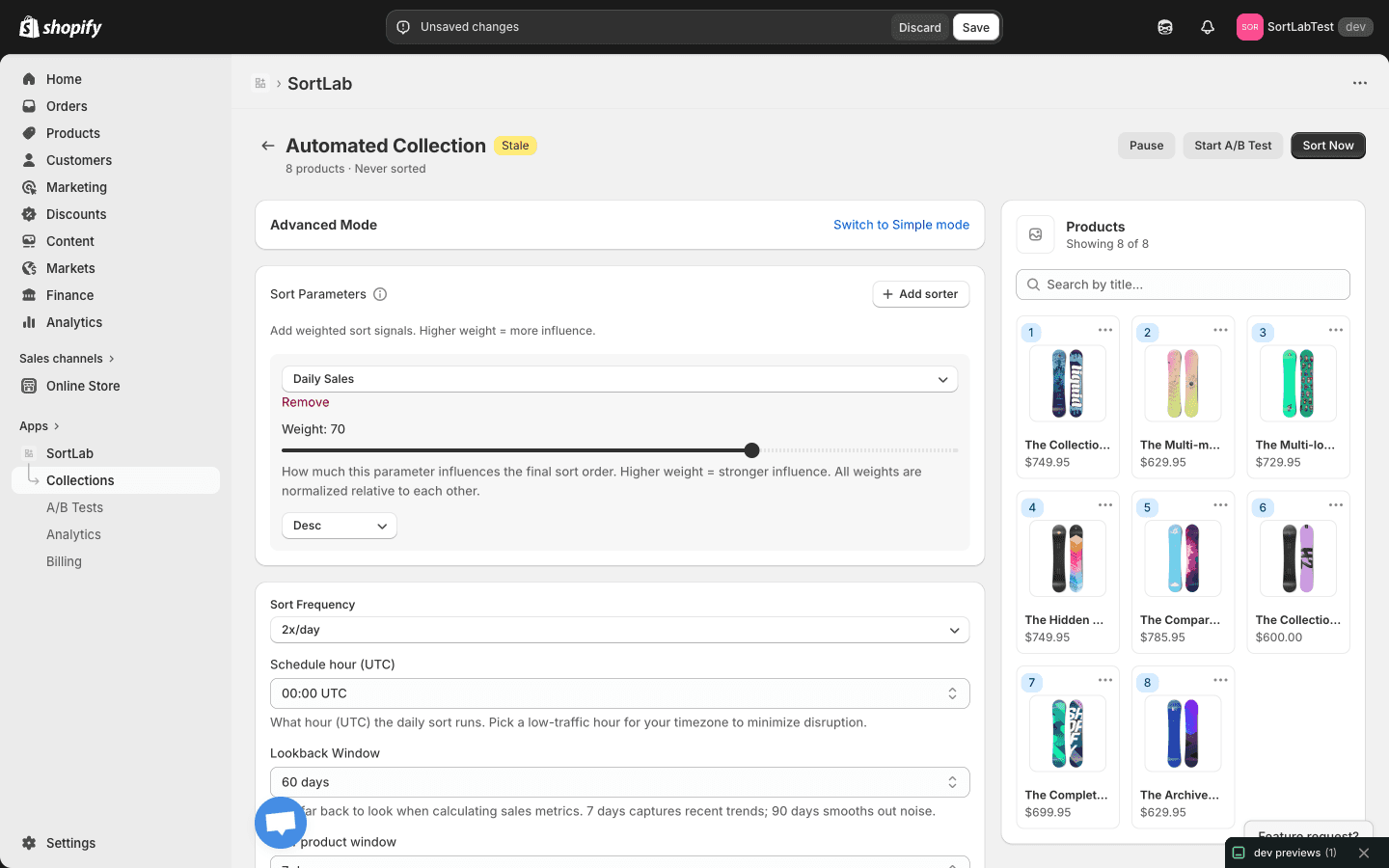
Advanced Mode gives you full control over how SortLab sorts your collection. Instead of picking a preset goal, you build your own sorting formula by combining multiple data signals, adjusting their weights, setting schedules, and configuring tag-based rules.
Who Is Advanced Mode For?
Advanced Mode is for merchants who want precise control over their product ordering. Use it when:
- You have a specific sorting formula in mind (e.g., 70% daily sales + 30% profit margin)
- You want to factor in tag-based merchandising rules
- You need scheduled, hands-off sorting with custom timing
- The preset strategies in Simple Mode do not quite match your goals
Advanced Mode with custom sorters and segments is a Plus plan feature ($49.99/mo). Some individual settings like tag rules and scheduled sorting are available on the Pro plan ($14.99/mo). See Plans & Pricing for full details.
To switch to Advanced Mode, open a collection and click Want more control? at the bottom of the Simple Mode strategy section, or click the Switch to Advanced mode toggle at the top of the collection detail screen.
You can always switch back to Simple Mode by clicking Switch to Simple mode.
Sort Parameters
Sort parameters are the core of Advanced Mode. Each parameter is a data signal that SortLab uses to score and rank your products.
Adding Sorters
Click the Add sorter button to add a new sorting parameter. Each sorter has three controls:
- Signal dropdown — Choose the data signal (e.g., Daily Sales, Revenue, Profit Margin, Page Views, Inventory Level, Review Score, Date Created)
- Weight slider (0-100) — Set how much influence this signal has on the final sort order
- Sort direction (Desc / Asc) — Choose whether higher values rank first (Descending) or lower values rank first (Ascending)
You can add as many sorters as you need. Click the Remove button on any sorter to delete it.
Understanding Weights
Weights determine how much each sorting parameter influences the final product order. The weight system is relative -- what matters is the ratio between your weights, not the absolute numbers.
Example configurations:
| Configuration | Effect |
|---|---|
| Daily Sales: 80, Profit Margin: 20 | Heavily favors sales volume, with margin as a tiebreaker |
| Daily Sales: 50, Profit Margin: 50 | Equally balances sales and margin |
| Daily Sales: 30, Page Views: 30, Margin: 40 | Slightly favors profitability with sales and traffic as supporting signals |
Start with two or three sorters and adjust from there. Adding too many signals with similar weights can dilute the impact of each one and produce a sort order that feels random.
Choosing Sort Direction
Most signals work best in Descending order (highest value first) -- you typically want products with more sales, higher margins, or better reviews at the top.
Use Ascending order for signals where lower values are better:
- Inventory Level (Asc) — Surface low-stock items first (scarcity-driven merchandising)
- Price (Asc) — Show the most affordable items first
- Date Created (Asc) — Show oldest products first (useful for FIFO inventory clearance)
Sort Frequency
Sort frequency controls how often SortLab automatically re-sorts the collection.
| Frequency | Description | Plan Required |
|---|---|---|
| Manual | Only sorts when you click Sort Now | Free |
| 1x / day | Sorts once per day at your chosen schedule hour | Pro |
| 2x / day | Sorts twice per day (at your schedule hour and 12 hours later) | Pro |
| Hourly | Sorts every hour | Plus |
Choose a frequency that matches how quickly your store's data changes. Most stores do well with 1x or 2x per day. Hourly sorting is useful for high-volume stores where sales patterns shift throughout the day.
On the Free plan, sorting is manual only. Upgrade to Pro to unlock scheduled sorting.
Schedule Hour (UTC)
When you select a daily or twice-daily sort frequency, you can choose what hour the sort runs. The schedule hour is set in UTC (Coordinated Universal Time).
How to choose: Pick a low-traffic hour for your timezone to minimize disruption to your customers. Sorting typically takes a few seconds, but running it during off-peak hours ensures the transition is seamless.
Examples:
| Your Timezone | Low-Traffic Hour | UTC Setting |
|---|---|---|
| US Eastern (ET) | 4:00 AM ET | 08:00 or 09:00 UTC |
| US Pacific (PT) | 4:00 AM PT | 11:00 or 12:00 UTC |
| Central Europe (CET) | 4:00 AM CET | 03:00 UTC |
| UK (GMT/BST) | 4:00 AM GMT | 04:00 UTC |
| Australia Eastern (AEST) | 4:00 AM AEST | 18:00 UTC |
For more details on choosing the right schedule, see Scheduling.
Lookback Window
The lookback window controls how far back SortLab looks when calculating performance metrics like sales, revenue, and page views.
| Window | Best For |
|---|---|
| 7 days | Fast-moving stores, trend-sensitive collections, flash sales |
| 30 days | Most stores -- good balance of recency and data volume |
| 60 days | Stores with slower sales cycles or less frequent purchases |
| 90 days | Stable catalogs with long product lifecycles |
A shorter window makes your sort order more reactive to recent changes. A longer window produces more stable rankings based on broader trends.
If your store is new or has low traffic, use a longer lookback window (60 or 90 days) so SortLab has enough data to produce meaningful rankings.
New Product Window
The new product window defines how long a product is considered "new" after it is created in your store. This setting works with the Boost New Products quick toggle.
| Window | Effect |
|---|---|
| 7 days | Only products added in the last week get a boost |
| 14 days | Default -- two-week window for new product visibility |
| 30 days | A full month of boosted visibility for new arrivals |
| 60 days | Extended boost for stores with slow discovery cycles |
Choose a window that matches your product launch cadence. If you add new products weekly, 7 or 14 days keeps the "new" badge meaningful. If you launch products less frequently, a longer window ensures they get enough exposure.
Quick Toggles
Advanced Mode includes the same quick toggles as Simple Mode, with full descriptions to help you understand each one:
- Push down out-of-stock — Moves out-of-stock products to the bottom of the collection so customers see available items first
- Boost new products — Gives products within the new product window a temporary ranking boost
- Exclude no-image — Pushes products without images to the end of the collection
These toggles are applied as final adjustments after the weighted sort parameters are calculated.
Tag Rules
Tag rules let you influence product positioning based on Shopify product tags. This is a powerful merchandising tool that layers on top of your sort parameters.
Tag rules require a Pro plan or higher.
Push Up Tags
Products with any of these tags get a boost in the sort order, pushing them higher in the collection. Use this to promote specific product lines, featured items, or seasonal picks.
Example: Add the tag featured to push up products you have tagged as featured in Shopify.
Push Down Tags
Products with any of these tags are deprioritized, pushing them lower in the collection. Use this for items you want to keep in the collection but do not want in prominent positions.
Example: Add the tag discontinued to push down products you are phasing out but have not removed yet.
Exclude Tags
Products with any of these tags are excluded from the sort entirely and pushed to the very end of the collection. Use this to effectively hide products from the sorted results without removing them from the collection.
Example: Add the tag hidden to exclude draft or internal-use products from appearing in customer-facing positions.
Tag rules use multi-select comboboxes, so you can add multiple tags to each rule. Tags must already exist on your products in Shopify.
Building an Advanced Configuration
Here is an example of setting up a custom sort configuration from scratch.
Switch to Advanced Mode
Open your collection in SortLab and click Want more control? or toggle to Advanced Mode.
Add your sort parameters
Click Add sorter and configure your signals. For a revenue-focused sort with trend awareness:
- Daily Sales — Weight: 60, Direction: Desc
- Profit Margin — Weight: 25, Direction: Desc
- Page Views — Weight: 15, Direction: Desc
Set your schedule
Choose 1x / day frequency and pick a low-traffic schedule hour for your timezone.
Configure the lookback window
Select 30 days for a balanced view of recent performance.
Enable quick toggles
Turn on Push down out-of-stock and Exclude no-image to keep your collection clean.
Add tag rules (optional)
Add featured to Push Up Tags to boost your hand-picked products. Add clearance to Push Down Tags to deprioritize sale items.
Sort Now
Click Sort Now to apply your configuration immediately. Future sorts will run automatically according to your schedule.
What's Next?
- Scheduling — Deep dive into scheduling options and best practices
- Sorting Strategies — Compare your custom configuration against preset strategies
- A/B Testing — Test your Advanced Mode configuration against a preset strategy