Installing SortLab
Install SortLab on your Shopify store and complete the onboarding wizard to start sorting your collections automatically.
Installing SortLab
Get SortLab up and running on your Shopify store in under five minutes. By the end of this guide, you'll have the app installed, permissions configured, and your dashboard ready to go.
Install from the Shopify App Store
Find SortLab in the App Store
Visit the SortLab listing on the Shopify App Store and click Add app. If you're already logged into your Shopify admin, you'll be taken straight to the installation screen.
You can also search for "SortLab" directly from Apps in your Shopify admin sidebar and install it from there.
Authorize permissions
Shopify will ask you to approve the permissions SortLab needs. Click Install app to grant access. Here's what each permission is used for:
| Permission | Why SortLab needs it |
|---|---|
| Read products | To access your product catalog, collection structure, and product details like images and inventory levels |
| Write products | To reorder products within your collections when a sort is applied |
| Read orders | To calculate revenue, sales velocity, and conversion metrics that power your sorting strategies |
SortLab never modifies your product data, prices, or inventory. The Write products permission is used exclusively to change the display order of products within collections.
Open SortLab in your admin
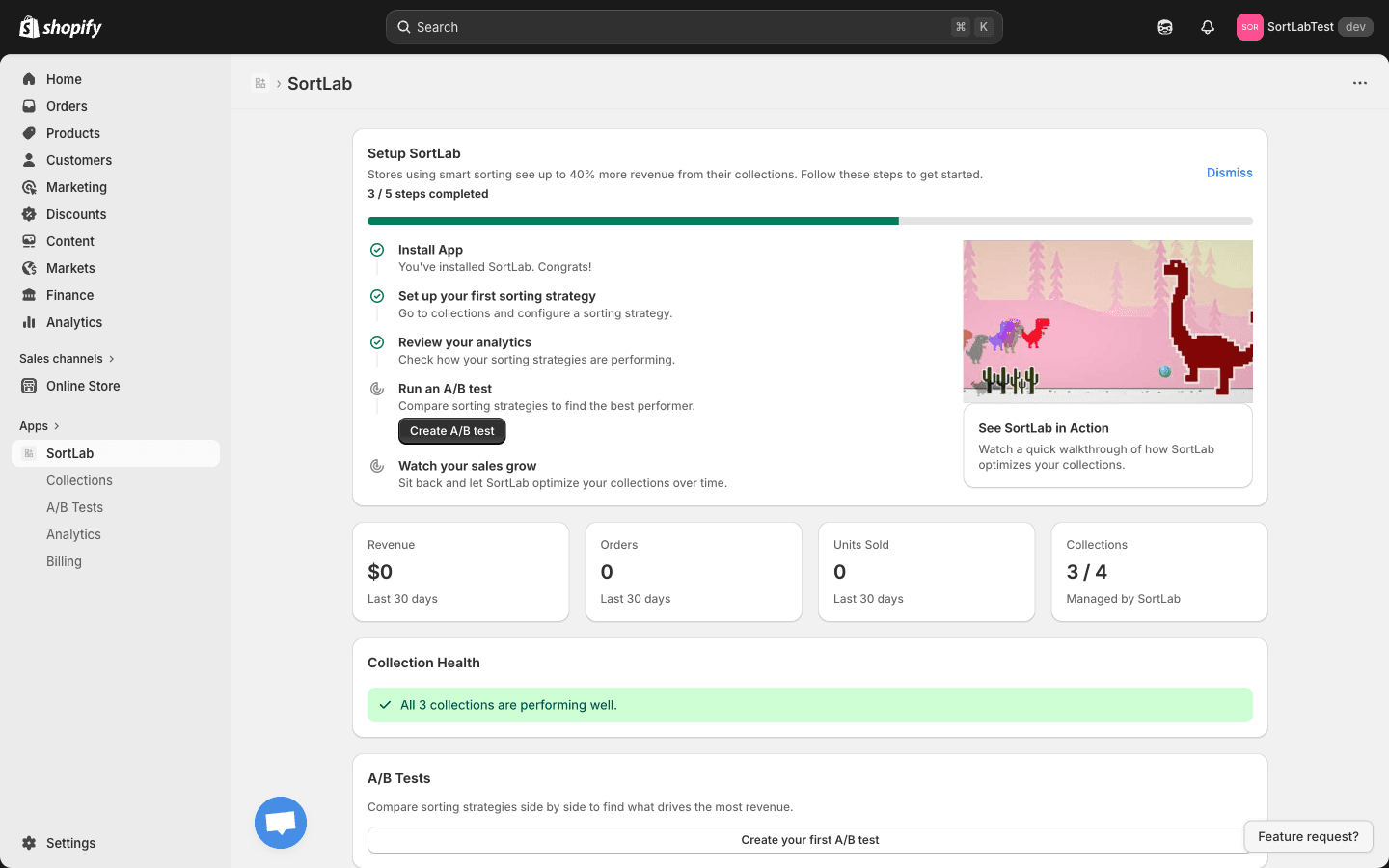
After installation, SortLab opens automatically inside your Shopify admin. You'll land on the Dashboard, where you'll see the onboarding wizard ready to guide you through setup.
Complete the onboarding wizard
The dashboard includes a five-step onboarding wizard to help you get the most out of SortLab from day one:
- Install App — Already done. This step is automatically checked off.
- Set up sorting strategy — Choose and apply a sorting strategy to your first collection.
- Review analytics — Check your dashboard after a few days to see how sorting impacts your metrics.
- Run A/B test — Experiment with different strategies to find what works best for each collection.
- Watch sales grow — Sit back and let SortLab optimize your product order continuously.
You don't need to complete every step right away. The wizard tracks your progress and picks up where you left off each time you open SortLab.
What you'll see on the dashboard
Once installed, your dashboard gives you an at-a-glance view of your store's sorting performance:
- Metrics cards — Revenue, Orders, Units Sold, and Collections Managed. These populate as SortLab starts tracking your data.
- Collection Health — A quick status indicator showing which collections are actively sorted and which need attention.
- A/B Tests — Any active experiments you're running.
- Collections Coverage — A pie chart showing the proportion of managed vs. unmanaged collections.
- Plan & Limits — Your current plan and usage at a glance.
- Help — Quick access to Chat Support, Video Consultation, Success Stories, and this Help Documentation.
Free plan — no credit card required
SortLab starts you on the Free plan, which includes up to 3 collections with manual sorting and all 7 goal presets in Simple Mode. No credit card is required to get started. You can upgrade to Pro or Plus at any time as your needs grow.
Next steps
You're all set! Now it's time to sort your first collection.
- Quick Start Guide — Sort your first collection in minutes
- Configuration — Explore the dashboard and customize SortLab for your store