Quick Start Guide
Sort your first Shopify collection in minutes using SortLab's Simple Mode sorting strategies.
Quick Start Guide
This guide walks you through sorting your first collection with SortLab. In about two minutes, you'll have your products reordered using a data-driven strategy designed to boost revenue.
Sort your first collection
Navigate to the Collections page
Open SortLab from your Shopify admin sidebar and click Collections in the navigation. You'll see a table listing all the collections in your store, along with key details like the number of products, current strategy, sorting frequency, status, revenue trend, and when each collection was last sorted.
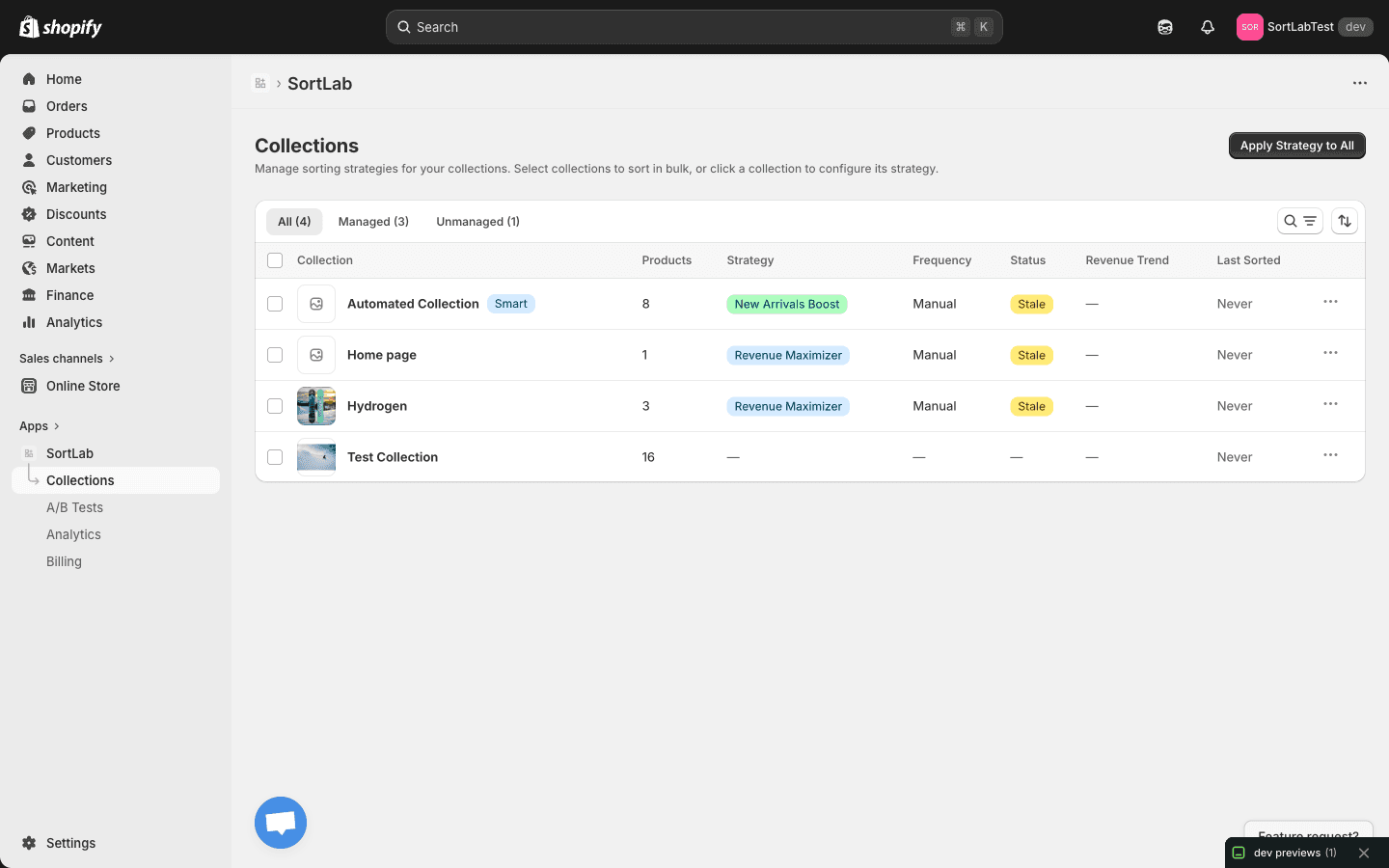
The page has three tabs to help you filter:
- All — Every collection in your store
- Managed — Collections that already have a SortLab strategy applied
- Unmanaged — Collections that haven't been set up yet
Click on any collection to configure its sorting.
Choose a sorting strategy
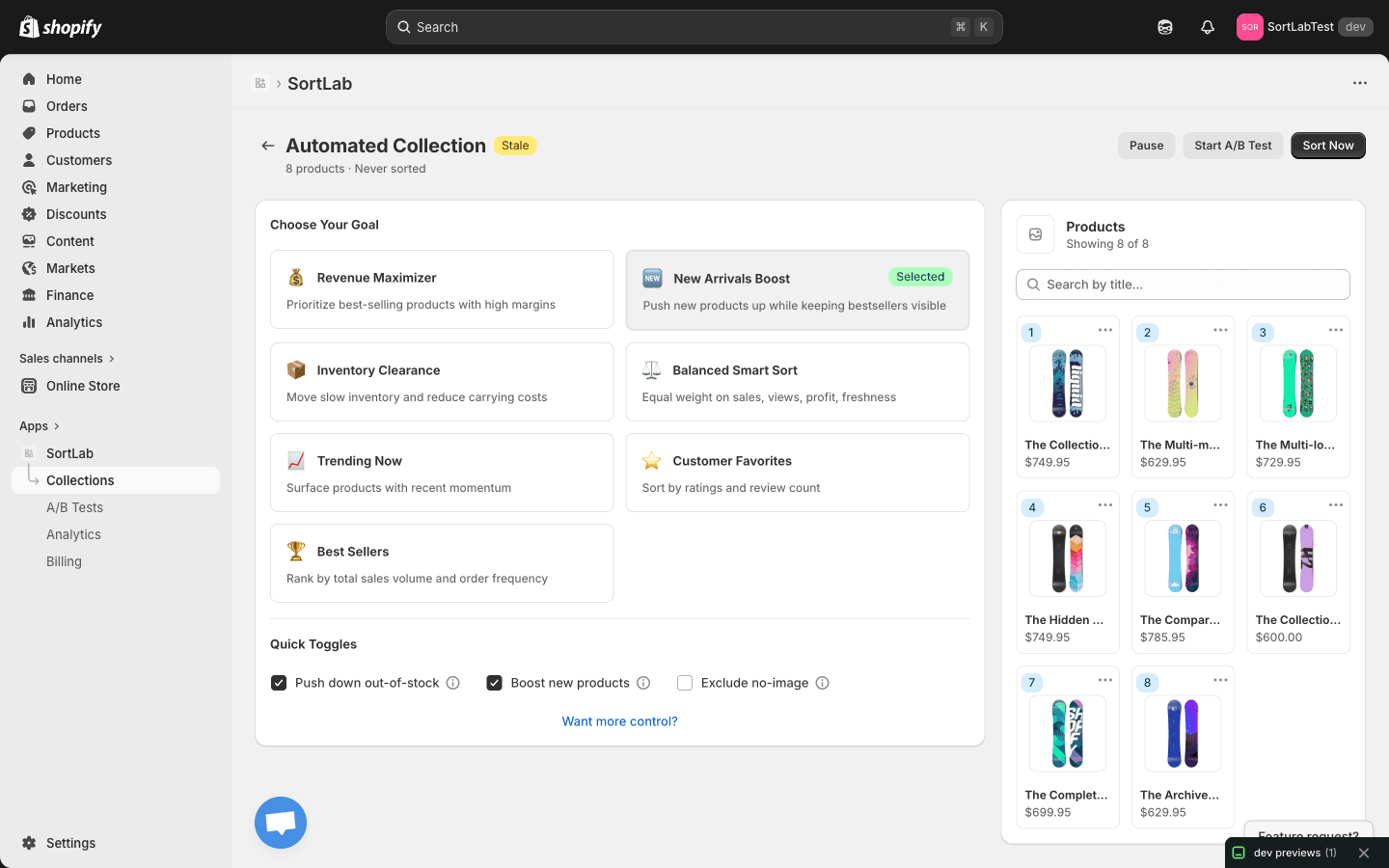
When you open a collection, you'll land in Simple Mode — the fastest way to set up sorting. Simple Mode offers seven goal-based presets. Pick the one that matches what you want this collection to achieve:
| Strategy | Best for |
|---|---|
| Revenue Maximizer | Your main collections — prioritizes best-selling products with high margins |
| New Arrivals Boost | Seasonal or fashion collections — pushes new products up while keeping bestsellers visible |
| Inventory Clearance | End-of-season or overstocked collections — moves slow inventory to reduce carrying costs |
| Balanced Smart Sort | General-purpose collections — equal weight on sales, views, profit, and freshness |
| Trending Now | Fast-moving categories — surfaces products with recent momentum |
| Customer Favorites | Collections where social proof matters — sorts by ratings and review count |
| Best Sellers | High-traffic collections — ranks by total sales volume and order frequency |
Not sure which strategy to pick? Start with Revenue Maximizer for your highest-traffic collection. It's the most popular choice and works well for most stores right out of the box.
Click on a strategy to select it. A checkmark will appear next to your choice.
Configure quick toggles
Below the strategy selector, you'll find Quick Toggles — simple on/off switches that fine-tune how products are sorted:
- Push down out-of-stock — Moves out-of-stock products to the bottom of the collection so customers see available products first. Enabled by default.
- Boost new products — Gives recently added products a visibility boost so they don't get buried. Enabled by default.
- Exclude no-image — Hides products that don't have an image, keeping your collection looking polished.
Quick Toggles work on top of any strategy. They're a great way to handle common merchandising rules without diving into Advanced Mode.
Run the sort
Click the Sort Now button to apply your strategy immediately. SortLab will analyze your product data and reorder the collection in seconds.
Once the sort completes, you'll see:
- A confirmation that the sort was applied successfully
- The Last Sorted timestamp updated on the Collections page
- The collection's Status changed to active
Go visit your collection on your live storefront to see the new product order. The changes are applied instantly to your Shopify store.
Set up automated sorting (optional)
If you're on the Pro or Plus plan, you can schedule SortLab to re-sort this collection automatically so your product order stays fresh as new sales data comes in.
- Pro — Sort up to 2 times per day
- Plus — Sort every hour
To set up a schedule, see the Scheduling guide.
On the Free plan, you can run manual sorts whenever you'd like. Just come back and click Sort Now anytime.
Apply a strategy to all collections at once
If you want to quickly set up multiple collections, go back to the Collections page and click the Apply Strategy to All button. This lets you choose a strategy and apply it to every unmanaged collection in one click — a great way to get started across your entire store.
Applying a strategy to all collections will overwrite any existing strategy on managed collections. Use this for initial setup, then customize individual collections as needed.
What to do next
Now that your first collection is sorted, here are some ways to get more out of SortLab:
- Sorting Strategies — Learn the details behind each strategy and when to use them
- Simple Mode — Deep dive into all Simple Mode options
- Advanced Mode — Build custom sorting rules with weighted metrics and segments (Plus plan)
- A/B Testing — Run experiments to find the best strategy for each collection
- Analytics — Track the revenue impact of your sorting decisions