Creating Tests
Step-by-step guide to creating and configuring A/B tests in SortLab to compare sorting strategies on your collections.
Creating Tests
This guide walks you through creating an A/B test from start to finish. By the end, you'll have two sorting strategies running side by side on a collection, competing to see which one drives more revenue.
Before you begin
Make sure the collection you want to test already has an active sorting strategy. SortLab uses that strategy as the Control (A) in your test. If you haven't set up sorting for the collection yet, follow the Quick Start guide first.
Step 1: Navigate to the A/B Tests page
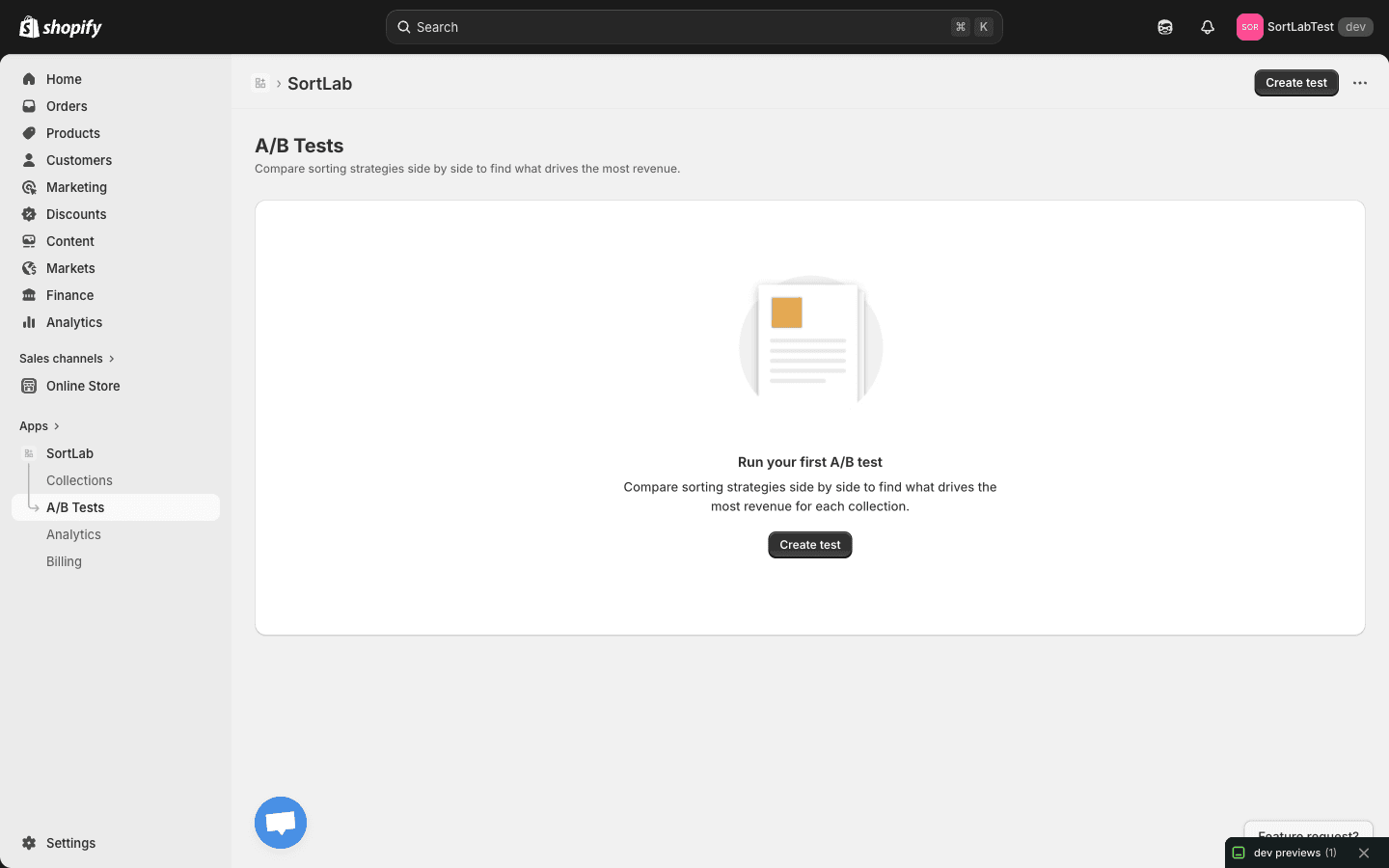
Open SortLab from your Shopify admin sidebar and click A/B Tests in the navigation. If you haven't created any tests yet, you'll see an empty state inviting you to run your first experiment.
Step 2: Click "Create test"
Click the Create test button to open the test creation page. This is where you'll configure every aspect of your experiment.
Step 3: Select a collection
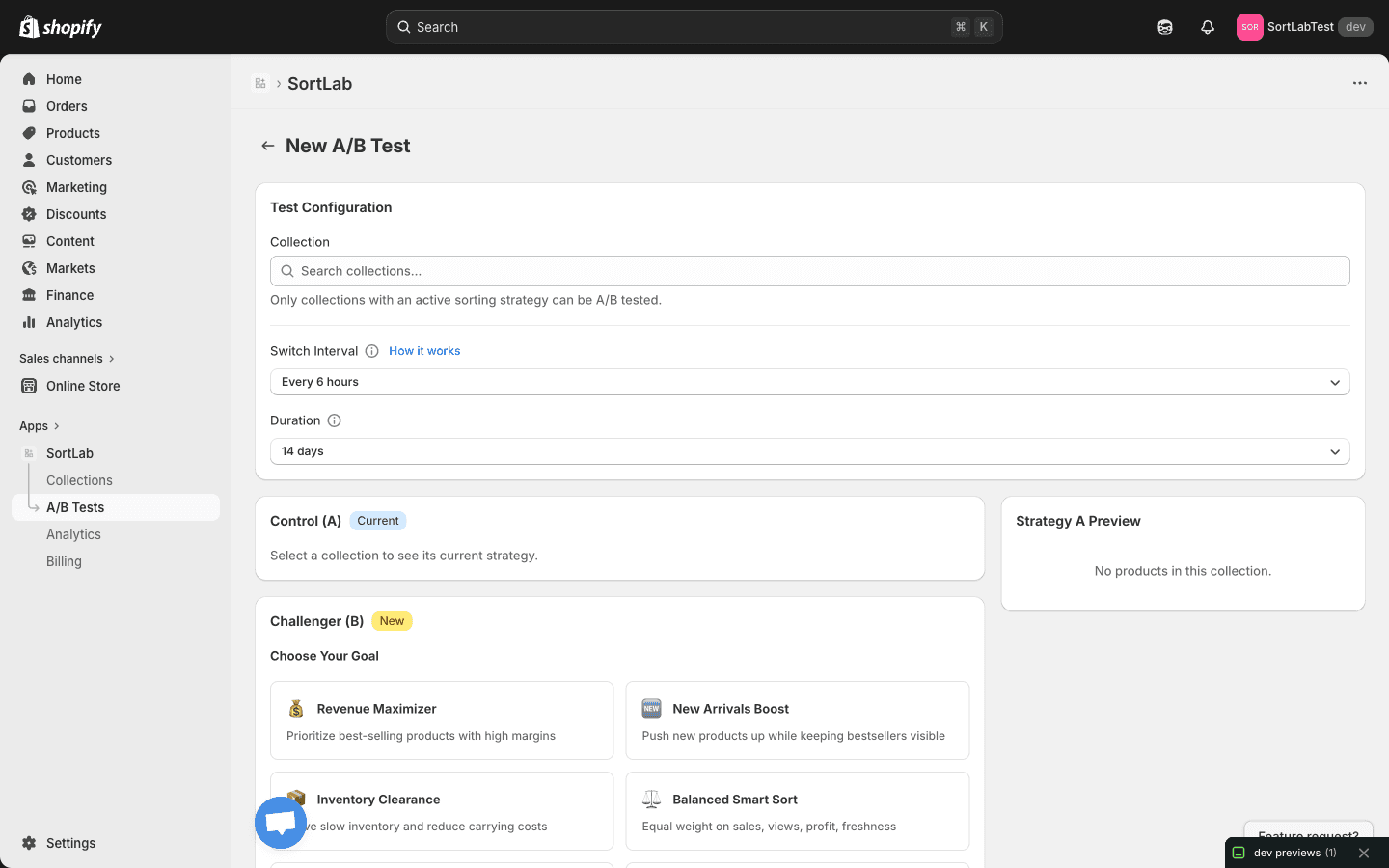
In the Test Configuration section, use the Collection search dropdown to find and select the collection you want to test.
Only collections with an active sorting strategy appear in the dropdown. If you don't see the collection you're looking for, go to the Collections page and set up a sorting strategy for it first.
Once you select a collection, SortLab automatically loads its current sorting strategy into the Control (A) section so you can see exactly what you're testing against.
Step 4: Configure the Switch Interval
The Switch Interval determines how often SortLab alternates between the two strategies. Use the dropdown to select an interval. The default is Every 6 hours.
Here's how to think about the switch interval:
| Interval | Best for | Consideration |
|---|---|---|
| Every 3 hours | High-traffic stores | More switches means more data points, but each period is shorter |
| Every 6 hours | Most stores (recommended) | Good balance between data collection and strategy exposure time |
| Every 12 hours | Stores with longer browsing sessions | Each strategy runs for half a day before switching |
| Every 24 hours | Stores with very low daily traffic | Full-day exposure ensures enough visitors see each strategy |
A shorter switch interval is not always better. If your store has moderate traffic, switching every 6 hours gives each strategy enough time to be seen by a meaningful number of visitors while still ensuring both strategies run across different times of day.
Step 5: Set the Duration
The Duration sets how long the entire test will run. The default is 14 days, which works well for most stores.
Choosing the right duration depends on your store's traffic volume:
- 7 days — Minimum recommended. Suitable for high-traffic stores that generate hundreds of orders per week from the tested collection.
- 14 days — The sweet spot for most stores. Two full weeks capture weekday and weekend shopping patterns, giving you reliable results.
- 21-30 days — Best for lower-traffic stores or when you want extra confidence in the results.
Longer tests produce more statistically reliable results. If you're unsure, lean toward a longer duration. You can always end a test early if the results are clear, but you can't extend a test once it's finished.
Step 6: Review the Control (A)
The Control (A) section displays your collection's current sorting strategy with a "Current" badge. This is the baseline that the Challenger will be measured against.
You don't need to configure anything here — SortLab automatically pulls in the active strategy from your collection. Take a moment to review it so you're clear on what the Challenger needs to beat.
Step 7: Choose the Challenger (B) strategy
The Challenger (B) section is where you pick the new strategy you want to test. It's labeled with a "New" badge. Under Choose Your Goal, you'll see the same strategy options available when sorting a collection:
- Maximize Revenue — Prioritize products that generate the most revenue
- Maximize Orders — Push products that get purchased most often
- Maximize Conversion Rate — Surface products that convert browsers into buyers
- Promote New Arrivals — Boost recently added products while factoring in performance
- Promote Trending Products — Highlight products with rising sales momentum
- Clear Old Inventory — Move older stock by promoting products that have been in the catalog longest
- Custom — Define your own weighted combination of metrics
Pick a Challenger strategy that's meaningfully different from your Control. Testing two very similar strategies will make it harder to detect a difference in performance. For example, if your Control is "Maximize Revenue," try "Maximize Conversion Rate" or "Promote New Arrivals" as the Challenger.
Step 8: Configure Quick Toggles for the Challenger
Below the Challenger strategy selection, you'll find Quick Toggles that let you fine-tune the behavior:
- Push down out-of-stock — Moves out-of-stock products to the bottom of the collection so customers see available items first.
- Boost new products — Gives recently added products a ranking boost so they get more visibility.
- Exclude no-image — Hides products that don't have an image, keeping your collection looking polished.
These toggles apply only to the Challenger (B) strategy. The Control (A) keeps whatever settings it already has.
Step 9: Preview and launch
Before starting the test, check the Strategy A Preview at the bottom of the page. It shows the current product order for your collection, so you can see the starting point for the test.
Once everything looks good, click the button to launch your test. SortLab will immediately start the experiment using your configured settings.
Tips for better test results
Here are a few best practices to help you get the most out of your A/B tests:
- Test one change at a time. If you change the strategy and the quick toggles at the same time, you won't know which change made the difference. Start with just the strategy, and test toggle changes separately.
- Don't edit the collection during the test. Adding or removing products mid-test can skew the results. Try to keep the collection stable while the experiment runs.
- Let the test finish. It's tempting to stop a test early if one variant looks like it's winning, but early results can be misleading. Give the test its full duration for the most reliable outcome.
- Test your highest-traffic collections first. More traffic means faster, more reliable results. Start with your busiest collections and work your way down.
After launching a test, you can monitor its progress from the A/B Tests page. SortLab will show you real-time metrics for both variants as data comes in.
Next steps
Your test is running. Now learn how to read the results and pick the winning strategy.
- Interpreting Results — Understand your test metrics and make data-driven decisions
- A/B Testing Overview — Revisit how A/B testing works in SortLab
A/B Testing Overview
Learn how A/B testing works in SortLab to compare sorting strategies and find the one that drives the most revenue for each collection.
Interpreting Results
How to read and act on your A/B test results in SortLab, including understanding metrics, statistical significance, and next steps.